CPAC Asia Imaging Products is launching its new CPAC Imaging PRO Home Studio. This software appropriate for general photographer or home users that need to improve your image as professionals looking to do retouching by easier auto and manual function.
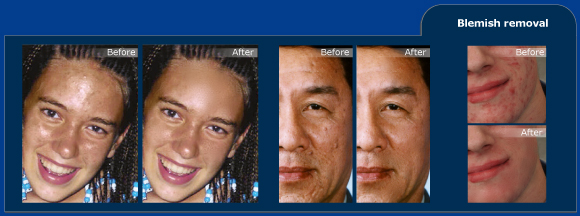
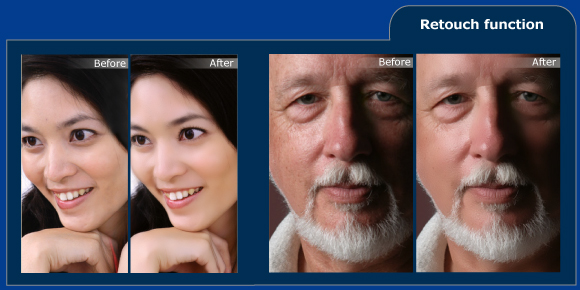
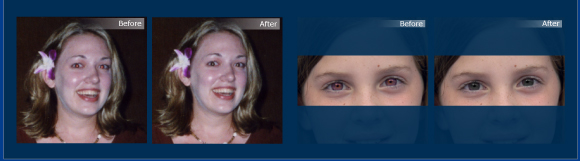
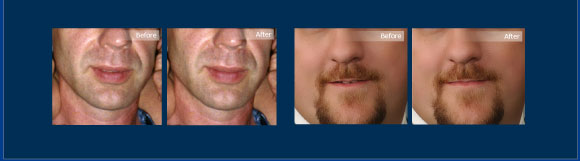
- Easily enhance portrait photo with natural look: Skin Retouching tool Brush/Stamp/Blemish tool
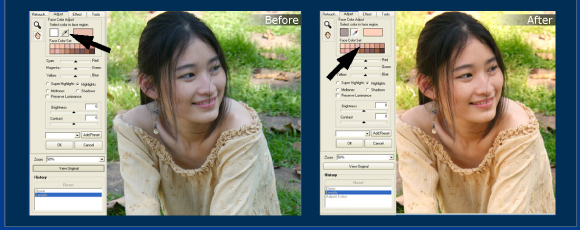
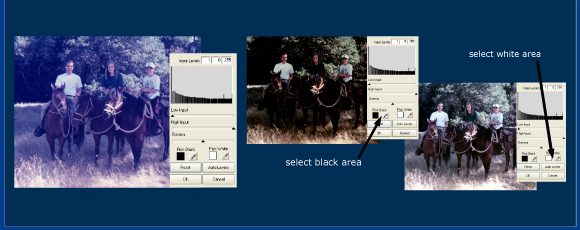
- Light adjust function: Level, Color, Face Color Adjusts.
- Image Effect : Sharpen, Soften, Dust Removal, Red Eyes Removal, Black & White, Sepia Toning
- Image Warping
- Multi-Language selection
Download CPAC Imaging PRO Home Studio Demo
File Size : 11.56 MB.
Click Here
- Thai
- English
- Japanese
- Chinese PRC
- Indonesian
- Spanish
- Taiwan
- Korean
- Microsoft Windows 2000/XP/Vista/7
- 1 GHz Processor or better
- 512 MB of RAM or Higher
- 100 MB free hard drive space
- Display adapter and monitor with resolution 1024x768 or higher
- Internet connection required for product activation
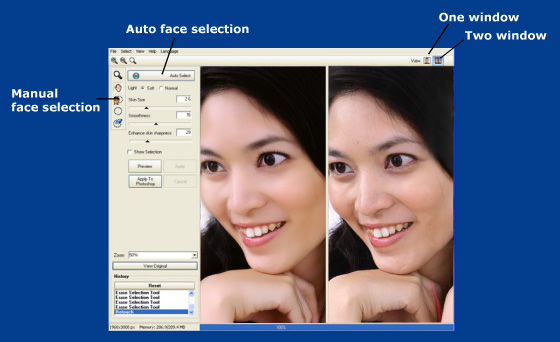
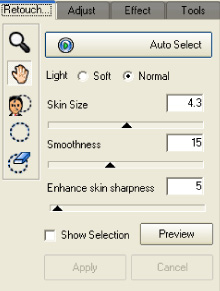
Auto Select button – This tool will help you to auto selection skin area for retouch, and adjust skin size and smoothness automatically.
Environment Light adjustment – To adjust the image's diffusion. Use soft to make more naturally retouch and Normal for high contrast image.
Skin Size Bar – To adjust the skin size. Smaller value indicates smaller skin size. Higher value make more naturally image.
Smoothness – The higher value produces smoother image. Typically, the smoothness value is 15. But you can adjust the value based on the portrait states.
Enhance skin sharpness – Use for make skin texture sharper or softer.
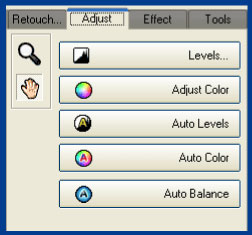
Levels... - To adjust image's light levels.
Adjust Color - To adjust the image's colors.
Auto levels - To automatic adjust levels
Auto color - To automatic adjust color balance
Auto balance - To automatic adjust brightness balance




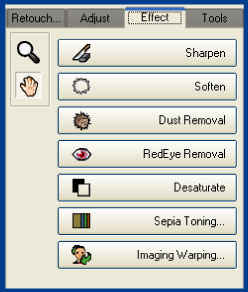
Sparpen - To make the portrait look sharper. For more details, see Sharpening the images
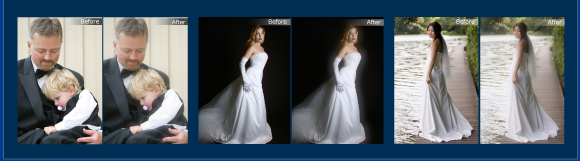
Soften - To edit soft looking images, marriage photos, etc. For more details, see Making Soft Looking Photos Dust Removal - To eliminate dust and scratches from scanned images. For more details, see Eliminating Dust in the Scanned Images.
Red Eye Removal - To eliminate red eye - For more details, see Red Eye Removal
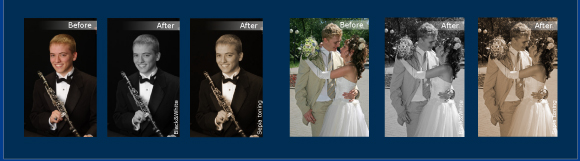
Desaturate - To revert colored images into black and white images.
Sepia Toning - To convert photos into sepia mode. See Make a B&W / Sepia Tone for more information.
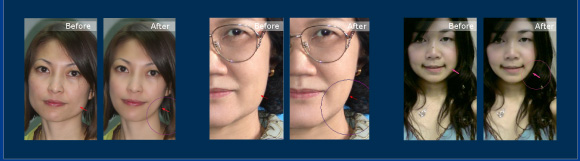
Image Warping - To adjust facial features, such as to eliminate open-mouth gap, to make the face leaner or fuller, and to add a slight smile. You can adjust the eye size, as well as other facial elements, to become bigger or smaller by using the Shrink tool and Grow tool.

















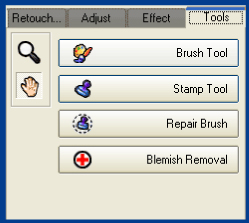
Brush Tool - To paint selected color in the images. You can control brush size, opacity, hardness (feather) and color at the brush option in Tools tab.
Stamp Tool - To copy one area, and put it on the other area to hide or correct defected areas.
Repair Brush - To fix specific spots, such as scars, scratched, tears......
Blemish removal - To remove pimple and blemish in one click. You can just paint on blemish on the face, Adjust skin size to control skin texture size.